From your first request to completed work, follow what the client does, what TASFRL staff does, and how the case moves between them.
Start with intake, then follow the six case stages. Your live case shows the current stage, next action, and controls available to you. Keep this guide beside your case while you work.
Review, request changes, or decline with a comment.
4
Staff follows up
Address the response and share a new version when needed.
Repeat the review and revision steps until corrections are resolved. Each response stays with the version reviewed. Signatures, required approvals, and field-work release are separate steps.
Before the case workspace
From the website to the same LMS case
Incomplete or complete account profile (both supported) or guest request; About You; Property Information; Access & Uploads; Review and Submit; Request Received; verified account and case linking; My Account / Land Stewardship; staff assignment and shared case review.
Two separate demo accounts and cases
Do I need a complete profile for LMS?
No. Alex has an incomplete account profile; Jordan has a complete account profile. Each has a different saved LMS request and case reference. Choose an account to follow that person's actual production screenshots throughout the tour.
These are fictional DEMO clients saved in the system for training. The percentages below reflect their saved profiles at capture time. Switching paths changes the account, property, case links and screenshot sequence together. Exploring the tour does not change either account or submit another request.
Path A / Incomplete profile
Alex Green (DEMO)
TAS-2026-0093
10-acre fictional property in Bastrop County
Saved profile completion: 0%
Personal information
To add
General land information
To add
Interests and needs
To add
Alex requests selective brush management and access-route maintenance. Required request information is saved even though the broader account profile is incomplete.
Alex can request help now and add broader profile details later. TASFRL can assess Alex's request using the contact, property, goals and access information saved with this case.
Jordan requests access-trail reopening, retaining the north creek buffer. Jordan has saved contact details, general land information, interests, goals and a contact preference. The complete profile and this LMS case are separate records.
Jordan's saved land background, interests and goals give TASFRL more context for ongoing support. The property and access details are still confirmed in Jordan's own LMS request.
Both must complete their request's contact details, property and goals, access information and required consent before submission. Saved name, email and phone can prefill About You for either client. General land information and interests do not automatically fill the request property or access steps.
A complete profile helps clients keep their background in one place and helps TASFRL with relevant follow-up, referrals and service planning. It does not give priority, verify identity or ownership, confirm partnership benefits, approve services or release work. Availability, scope, funding and applicable program requirements still need review.
Most entry screenshots below are local component examples with fictional data, captured on 17 October 2026. The profile image uses the refreshed production tour capture. For the deployed client and staff screens, open the production website tour. Exploring these examples does not submit a request or sign documents.
Production route check, 17 October 2026: Sign-in required on production; private content not inspected.
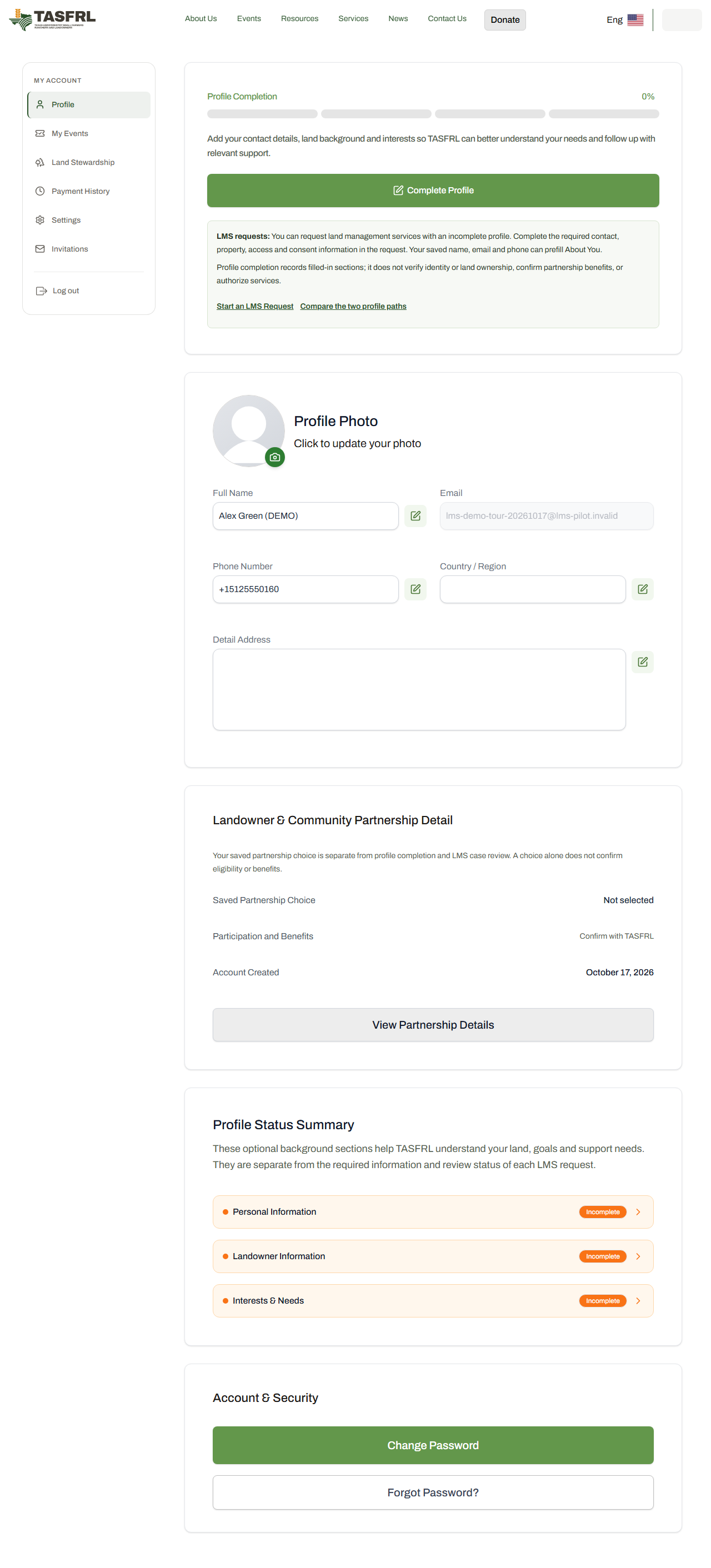
Client action: An existing client signs in and checks their name, email, phone and address in Profile. New clients can register and verify their email. The separate Complete Your Profile journey covers profile details, land information, interests and membership/pathway options.
Connection to the case: Profile completion adds account background; it does not submit an LMS request or approve services. Saved name, email and phone can prefill About You for signed-in clients with either an incomplete or complete profile. General land information and interests do not automatically fill the request property or access steps. The request supports guests too.
Alex's example: Alex uses alex.green@example.invalid. The same contact appears in About You, the case and the filled PDFs. Later profile edits do not automatically rewrite saved request answers.
Production route check, 17 October 2026: Public production page responded successfully.
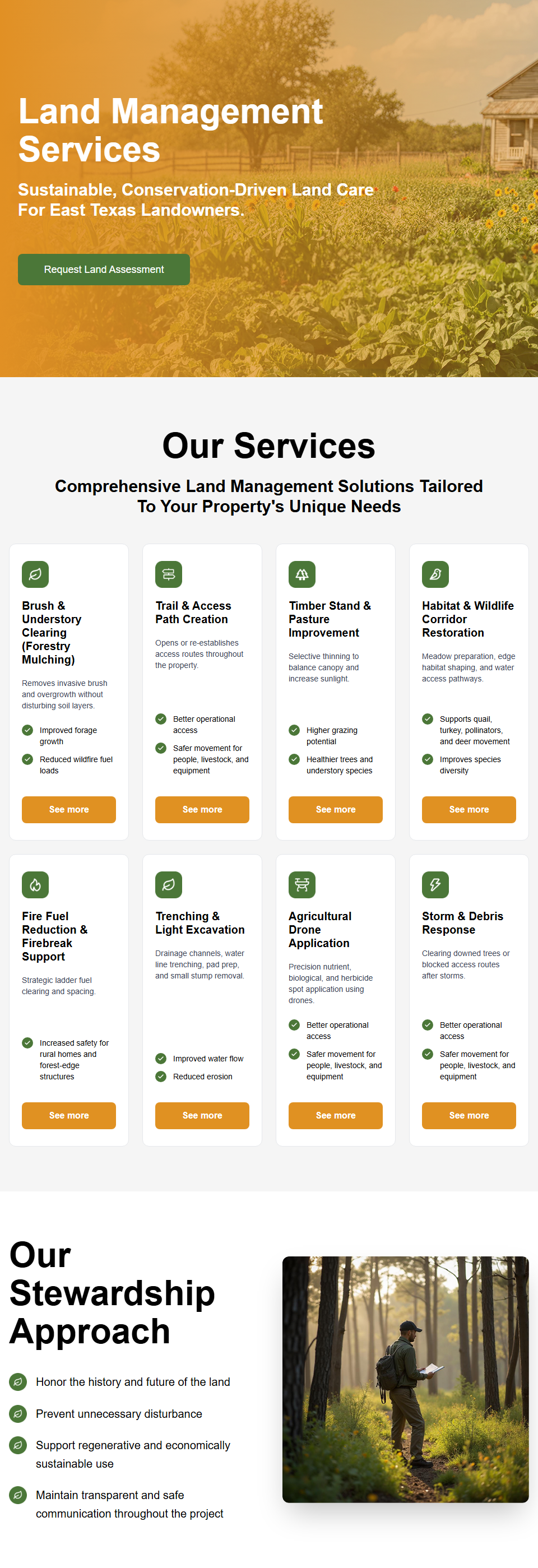
Client action: Read the services overview and service details, then start a land stewardship request.
Connection to the case: This is the website entry point. Reading a service page does not create a case. The four-step request captures the actual property, goals and access details; it supports both guests and signed-in clients.
Alex's example: Alex is interested in selective brush management and an access route, then enters those goals in the request.
Production route check, 17 October 2026: Public production route responded successfully.
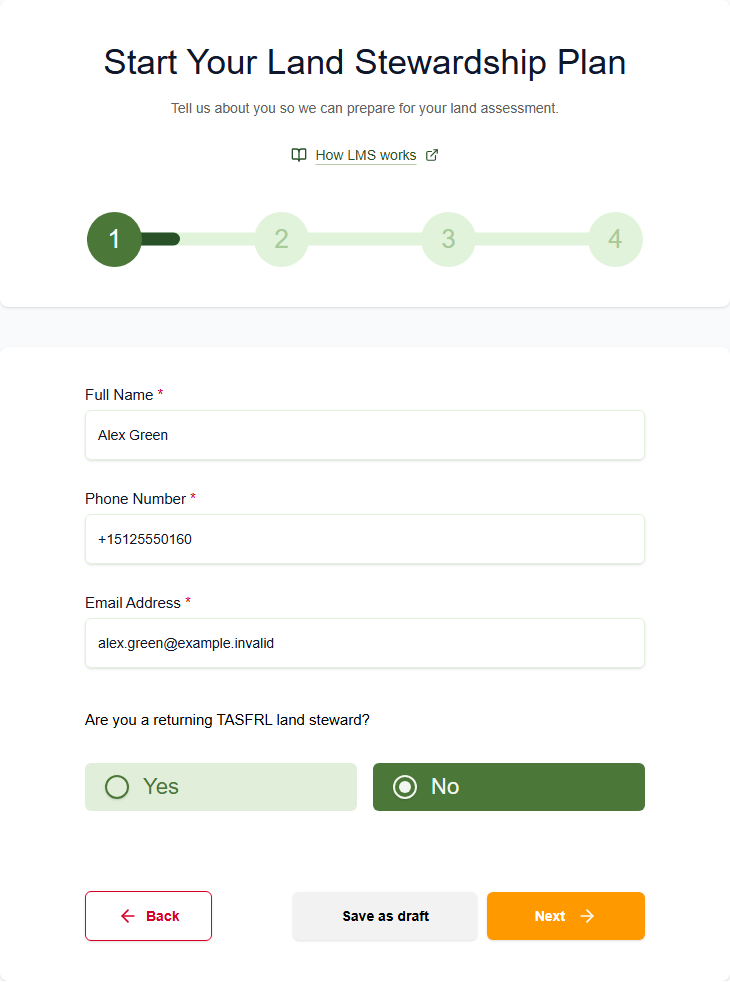
Client action: Enter full name, phone, email and whether you are a returning land steward. Check any prefilled contact information before continuing.
Connection to the case: Saving or continuing creates or updates the request draft. Subsequent request steps continue that draft; they do not create a new form for every screen. A guest draft is resumable using its draft credentials, which do not grant account ownership.
Alex's example: Alex Green; alex.green@example.invalid; fictional phone +1 512 555 0160; not a returning steward.
Local component capture with fictional data, 17 October 2026. No live account or case changes.
Production route check, 17 October 2026: Public production route responded successfully; continue from step 1.
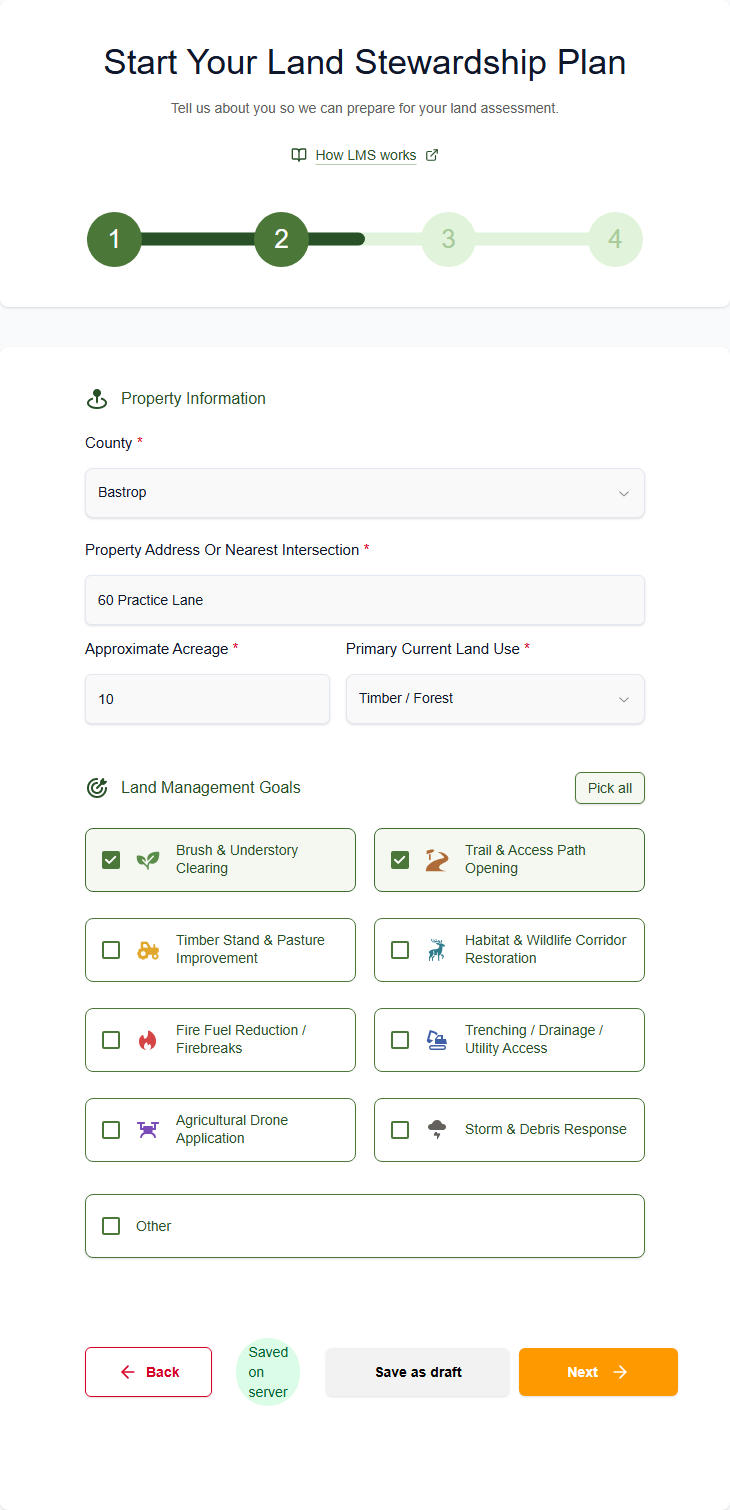
Client action: Enter county, property address, approximate acreage, primary land use and land management goals.
Connection to the case: These are the request's property details shown to the client and staff in the case. Staff later confirms assessment facts and the work boundary; request acreage is not automatically the agreed work acreage.
Alex's example: Bastrop County; 60 Practice Lane; 10-acre property; Timber / Forest; brush and trail goals. The later work order covers only 1.5 acres.
Local component capture with fictional data, 17 October 2026. No live account or case changes.
Production route check, 17 October 2026: Public production route responded successfully; existing draft needed.
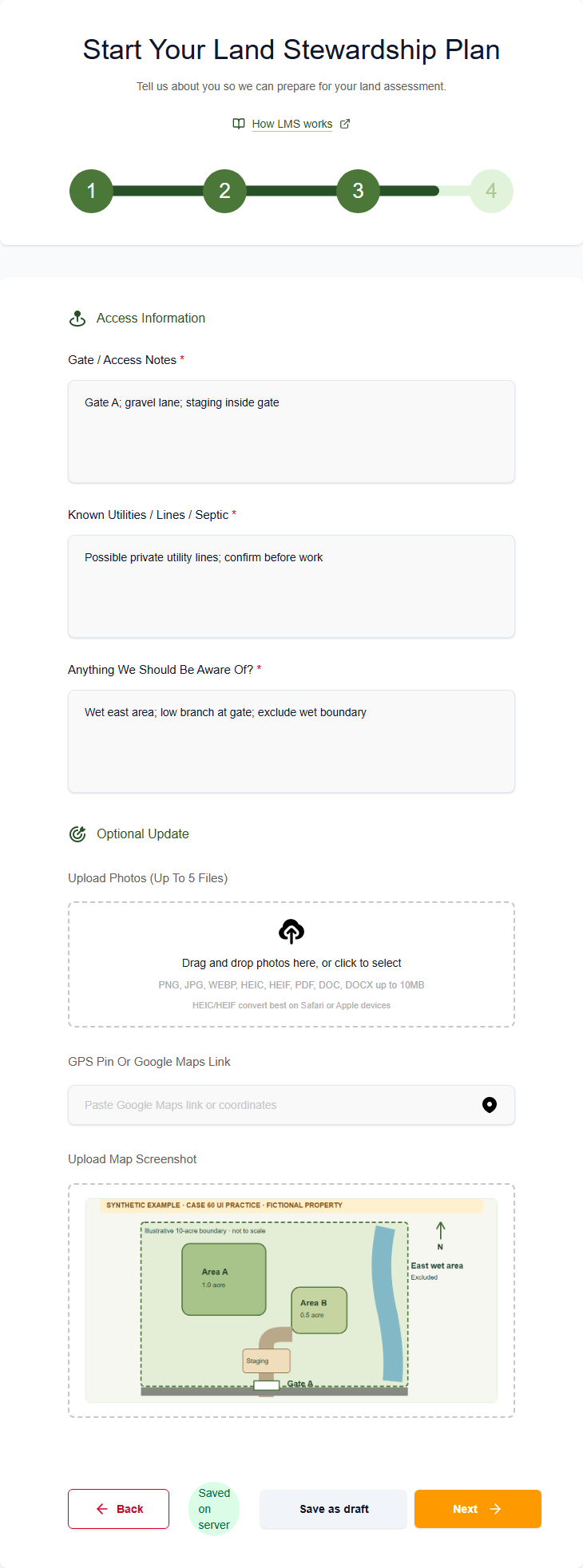
Client action: Add gate/access notes, known utilities, hazards, an optional location link, and appropriate photos or a map.
Connection to the case: Staff uses these saved answers and attachments during triage and assessment. Supplying a map or gate note does not grant entry or authorize work. Form 01 and the later release checks remain separate.
Alex's example: Gate A; gravel lane; stage inside the gate; possible private utility lines; wet east boundary excluded. Map 60-A is a fictional supporting map, not a survey.
Local component capture with fictional data, 17 October 2026. No live account or case changes.
Production route check, 17 October 2026: Public production route responded successfully; existing draft needed.
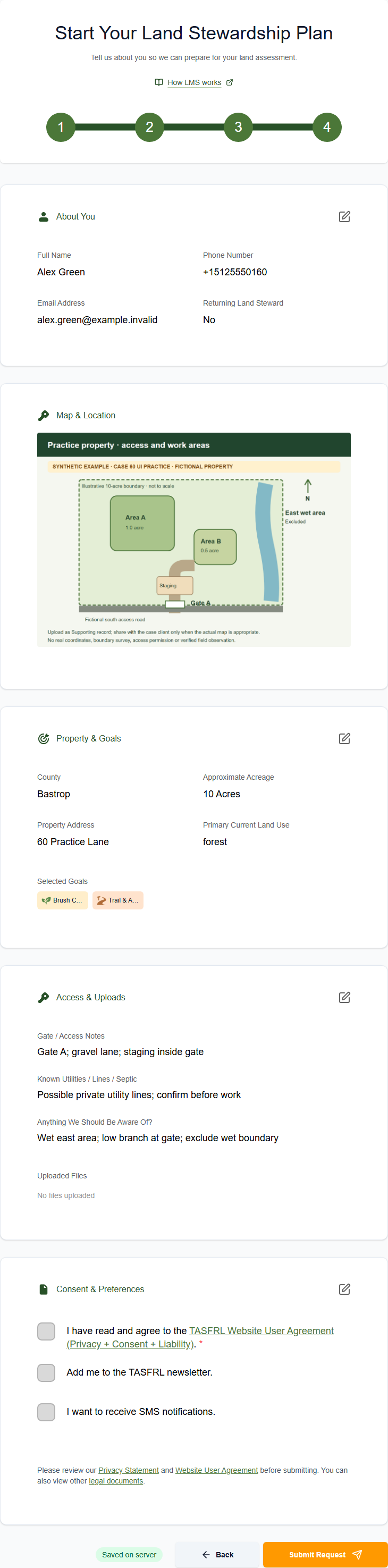
Client action: Review all request answers, select the required contact consent and submit once. Newsletter and SMS choices are separate from the request consent.
Connection to the case: This submits the same saved request for staff triage. It does not sign an agreement, approve pricing or release work. The case reference identifies this request throughout the later process.
Alex's example: Alex checks the 10 acres, access notes and brush/trail goals. The screenshot is a read-only preview; it has not submitted a live request.
Local component capture with fictional data, 17 October 2026. No live account or case changes.
Production route check, 17 October 2026: Public production route responded successfully; confirmation details depend on submission.
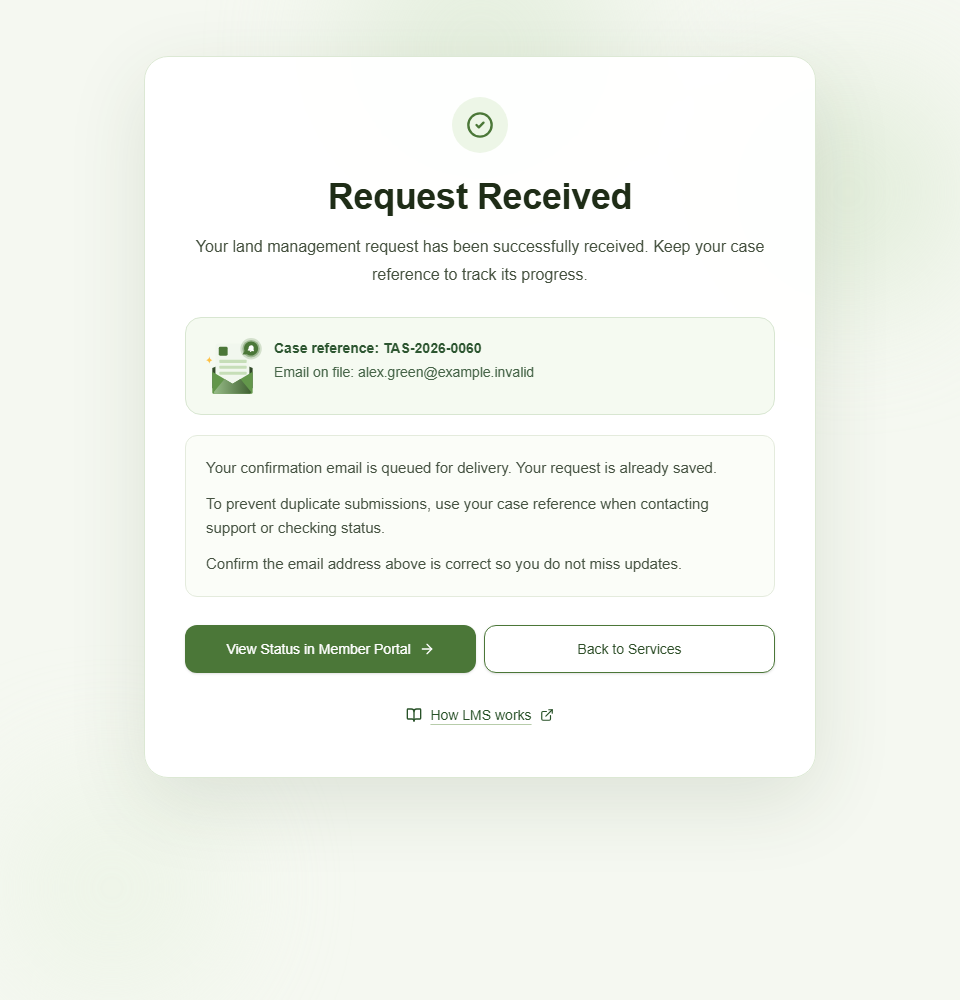
Client action: Keep the case reference and confirm the email on file. Signed-in clients can open their member portal. Guests follow account creation, verification and any case-claim instructions sent to their request email.
Connection to the case: The confirmation page reports the submitted request and notification status. Opening the URL alone does not prove a request exists. Email delivery may lag; do not resubmit just because a confirmation email is missing. If a guest case does not appear after account verification, contact TASFRL with the reference.
Alex's example: Fictional reference TAS-2026-0060 and Alex's fictional email. The local screenshot represents a confirmation state; no live email or case was created.
Production route check, 17 October 2026: Sign-in required on production; private content not inspected.
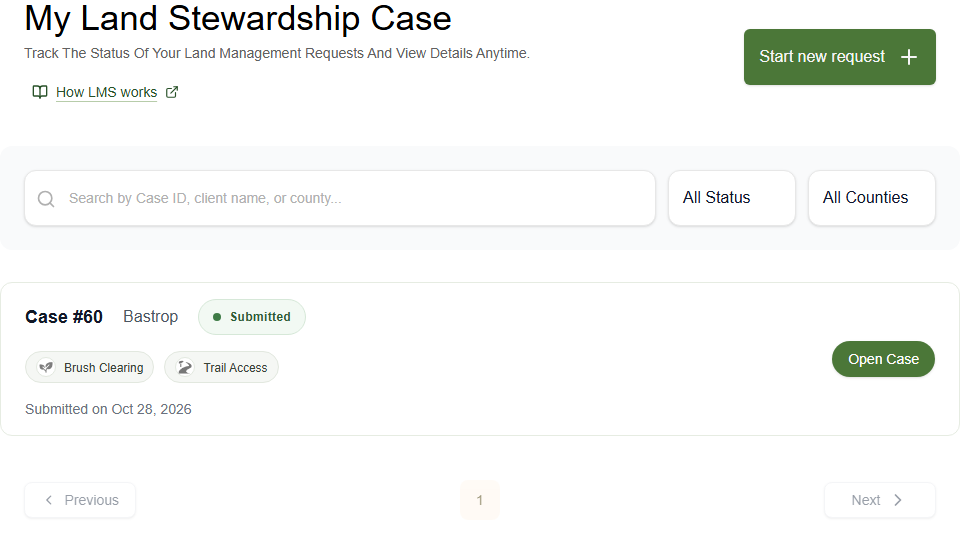
Client action: In My Account, select Land Stewardship and open the appropriate case card. This is separate from Profile. Use the case's current progress and next action once inside.
Connection to the case: An administrator finds the same request in Admin / Cases, assigns the case lead and records the next client action. Assigned staff uses My Account / Assigned Cases. Role and case assignment control access; clients and staff do not submit duplicate requests to communicate.
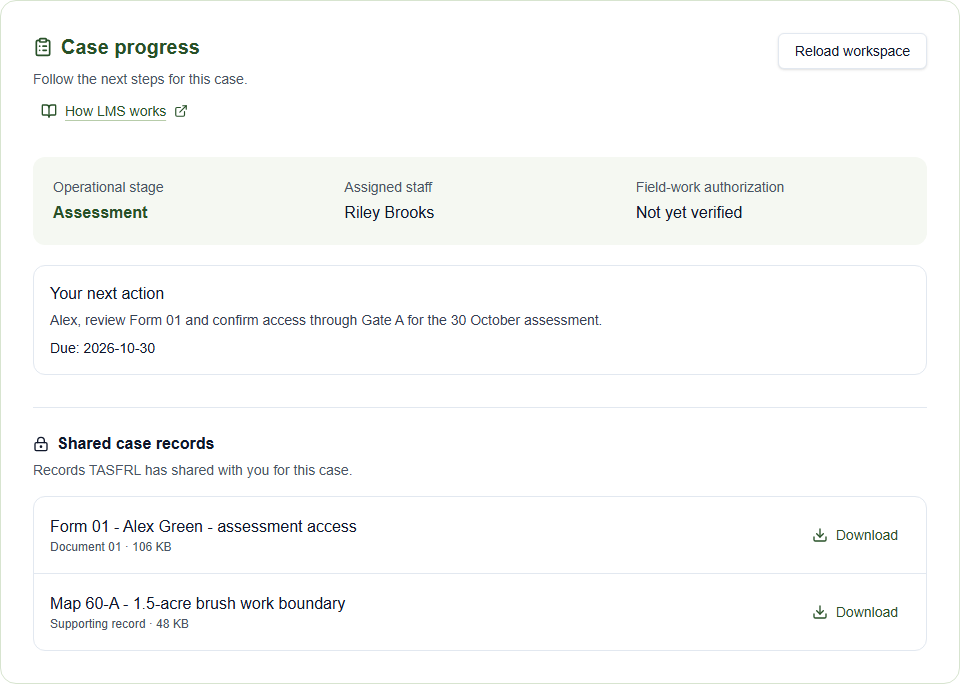
Alex's example: Alex's submitted case leads into the populated Case progress screenshots below. Riley is the fictional assigned lead. The older Draft / Submitted / Reviewed request badge is distinct from the operational stage and work authorization.
Local component capture with fictional data, 17 October 2026. No live account or case changes.
How these screens relate
Profile is not the request: Profile/contact and membership information belongs to the account. About You, property, access and uploads belong to the request. Completing one does not complete the other.
The same case continues: The intake request becomes the case that client, administrator and assigned staff access through their respective screens. Form 01, assessment findings and later forms are records attached to that case.
Assessment has two editors today: The older Start/Open Assessment walkthrough still exists in the current code. It can seed selected observations into the first Assessment review draft; later edits are not synchronized. The guide's main path uses Assessment review for numbered client findings. Removing or redirecting the older editor has been recommended but has not been implemented or deployed.
Local does not mean deployed: The local screenshots use current components and fictional data with workflow options enabled. A working local preview does not verify production feature flags, authenticated permissions, signing availability or deployed backend behavior. Public route checks confirm only the responses described above.
Complete About You, Property Information, and Access & Uploads. Include your goals, access notes, known hazards, and available maps or photos.
Check the Review step, select the required contact consent, and submit. Keep the case reference shown on Request Received.
Open My Account → Land Stewardship to track your linked request. If you submitted as a guest, create and verify an account with the same email; contact TASFRL if the case is missing.
TASFRL staff
Find the submitted request in Admin → Cases. An administrator assigns the responsible staff member.
Assigned staff open My Account → Assigned Cases and continue the same case, using the client's existing property details and uploads.
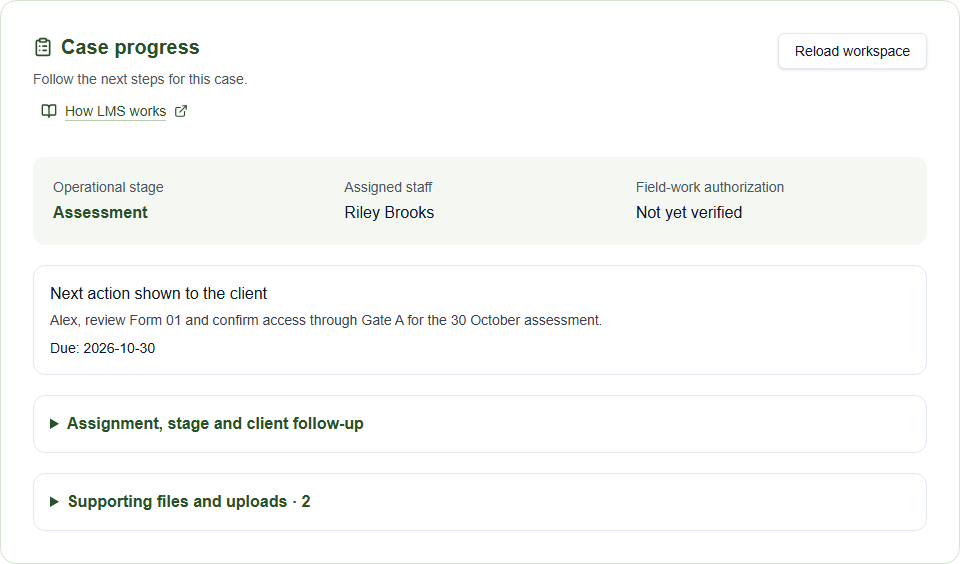
Use Assignment, stage and client follow-up to save the next client action and due date. Keep team instructions in the separate staff-only planning field.
Who acts next
Client submits → administrator assigns → staff explains the next action to the client.
Records: The original request, maps, photos, and supporting records.
Submitting a request or changing its request status does not grant property-entry permission or authorize field work.
Current UI: client and staff
Captured 16 October 2026 from the current application with synthetic case data. These examples show the controls, not a live client case or a completed signing ceremony.
Client viewStaff view
Stage 1 of 6
Assessment and access
Client
Coordinate access with the case lead and confirm who can authorize entry to the property.
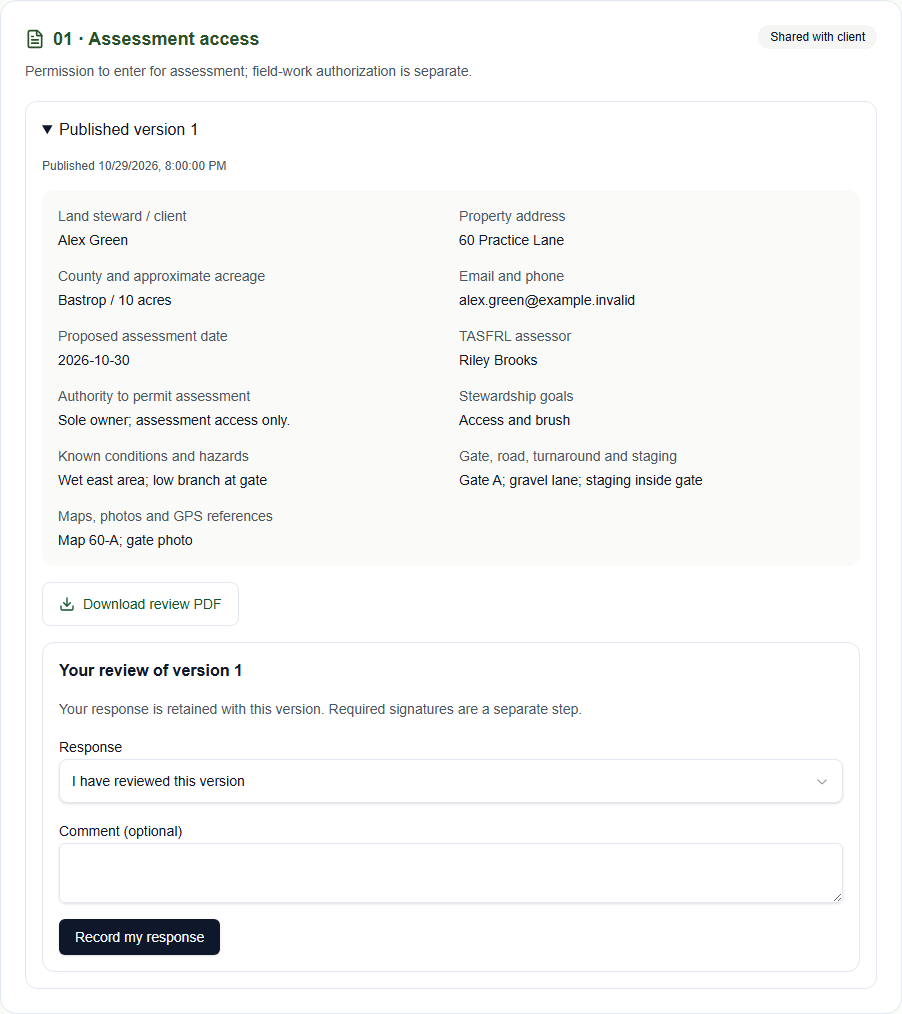
In Assessment review, read the shared numbered findings. Choose I have reviewed these findings, Changes are needed, or I decline this assessment proposal.
Add a comment when requesting changes or declining, then select Send assessment response. Review a replacement version when staff shares one.
TASFRL staff
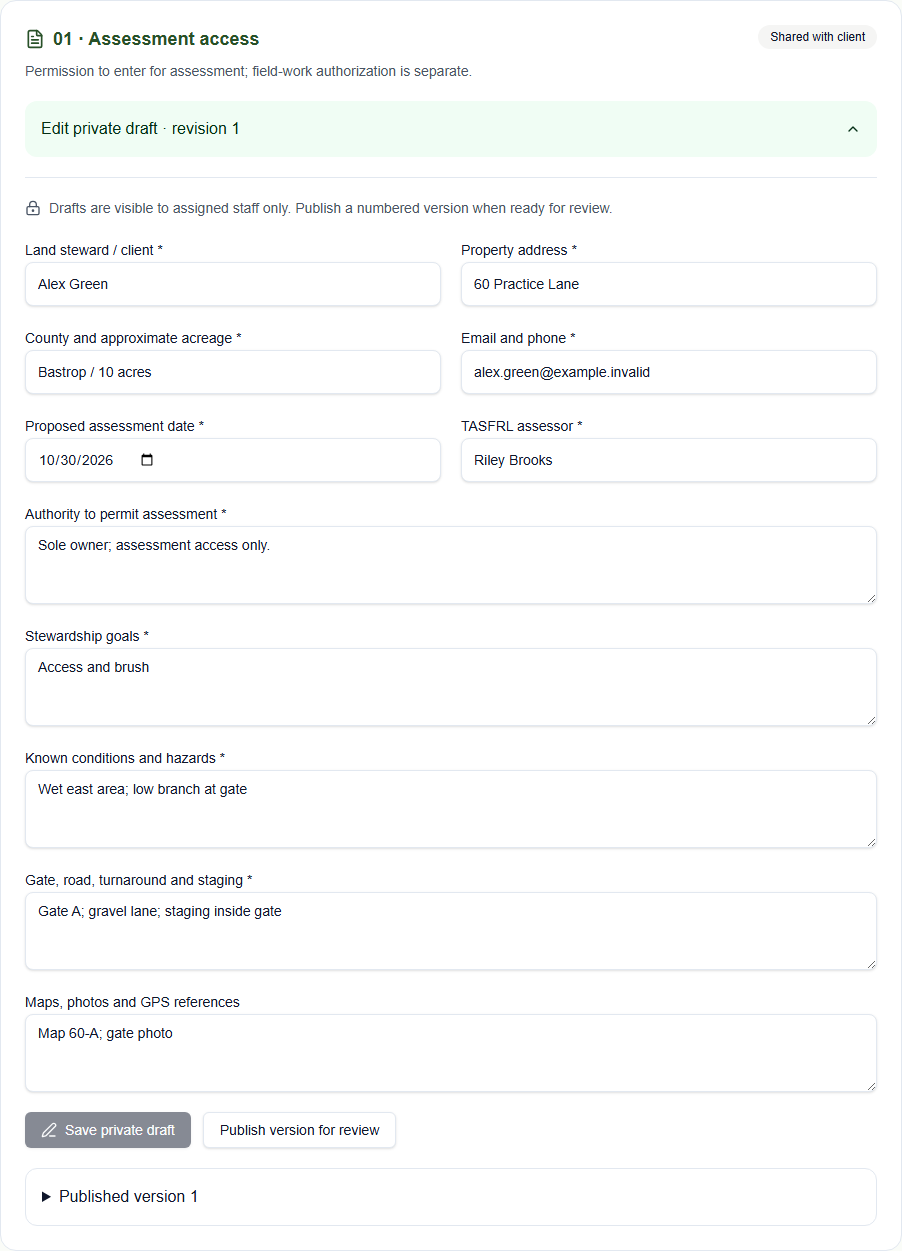
Confirm the property and entry authority. Use Prepare Form 01 for the assessment/access form and record findings separately in Assessment review.
Save the assessment draft, then share a numbered version with the client. Draft findings stay private until shared.
Read the client's response. Correct the draft and share a new version when needed; earlier versions and their responses remain in the case.
Who acts next
Staff shares findings → client responds → staff revises and shares again if needed.
Records: 01 · Assessment and access; separately shared assessment findings.
Form 01 and the assessment findings are separate records. Reviewing findings does not give permission to enter or release field work.
Current UI: client and staff
Captured 16 October 2026 from the current application with synthetic case data. These examples show the controls, not a live client case or a completed signing ceremony.
Client viewStaff view
Stage 2 of 6
Scope and pricing
Client
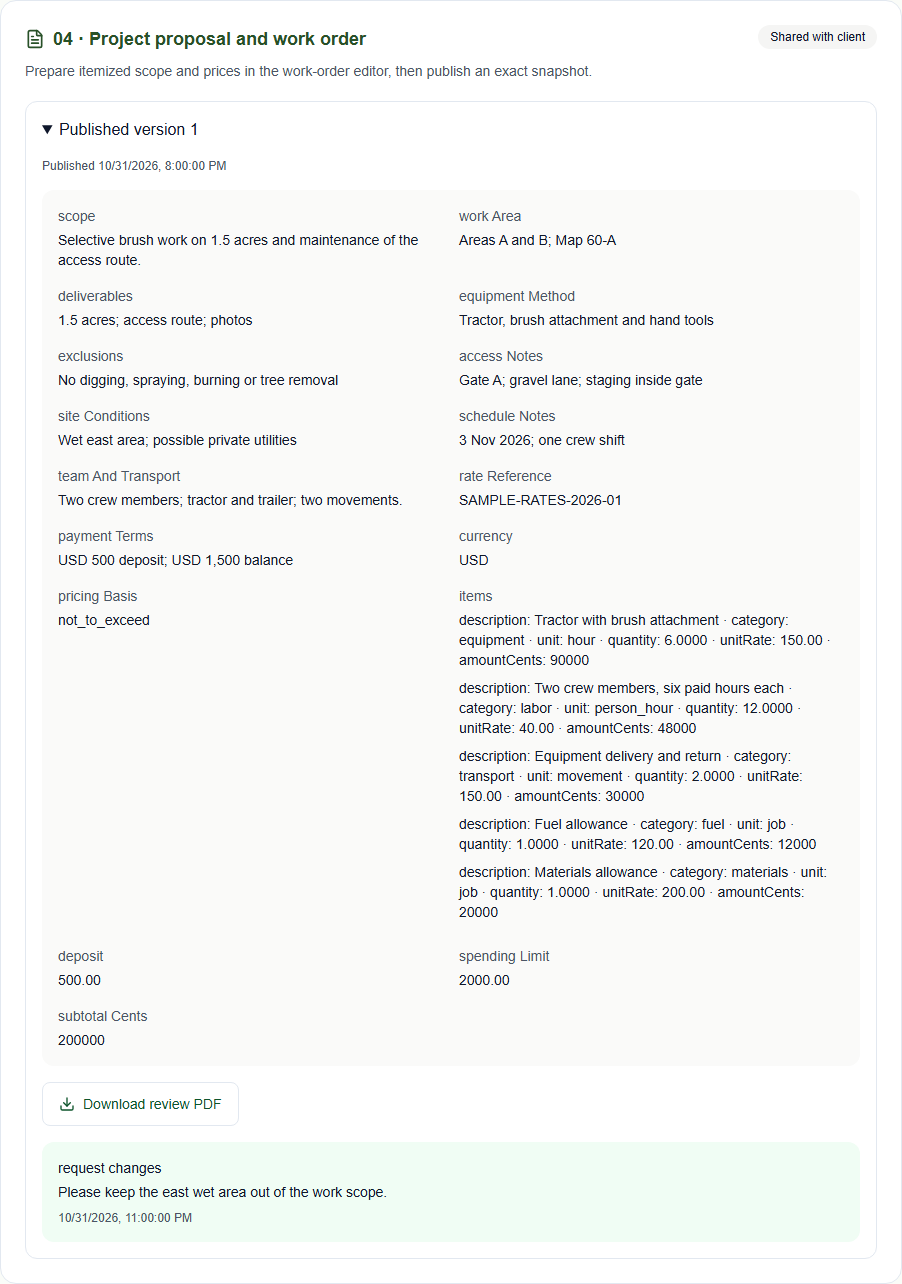
Open the shared Form 04 in Case journey and forms. Read the scope, itemized prices, access assumptions, and proposed schedule.
Choose I have reviewed this version, Request changes, or Decline this version. Explain changes or a decline in the comment, then select Record my response.
If staff publishes a replacement, check that version and respond again before proceeding to agreements.
TASFRL staff
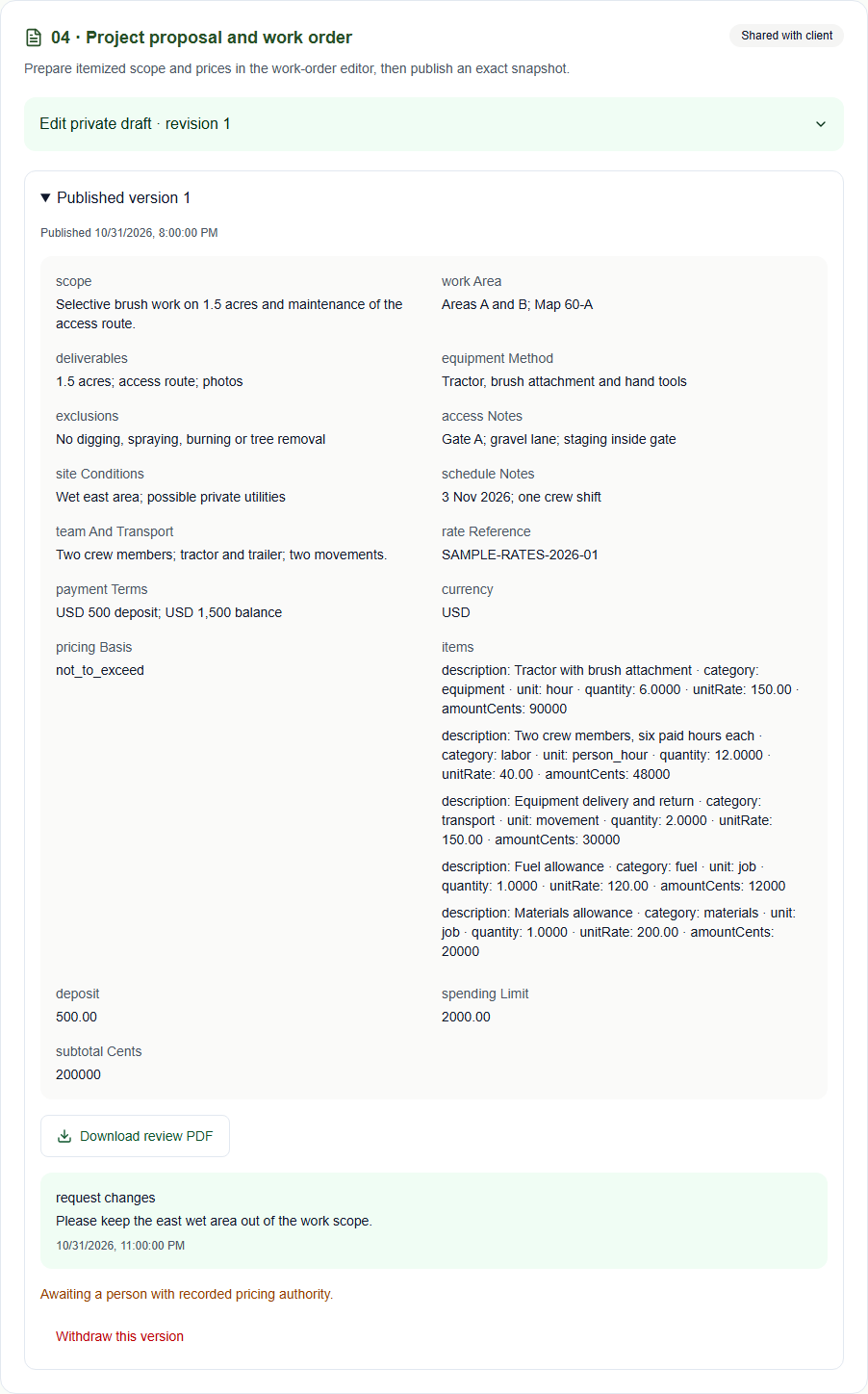
Prepare the itemized work order from the assessment. Use the work-order drafting controls when enabled, and prepare Form 04 in the case.
Obtain the required pricing or community-rate approvals. Save the draft and select Publish version for review; client access follows the required approvals.
Read the response and revise the proposal when needed. Publish a new numbered version so the client's response stays tied to the exact scope and price they read.
Who acts next
Staff publishes the proposal → client reviews or requests changes → staff publishes the revised proposal.
Records: 04 · Work order; internal 08 · Community rate approval and 09 · Rate card when applicable.
A review response records that version's review. Required signatures and work-release checks come separately.
Current UI: client and staff
Captured 16 October 2026 from the current application with synthetic case data. These examples show the controls, not a live client case or a completed signing ceremony.
Client viewStaff view
Stage 3 of 6
Agreements and signatures
Client
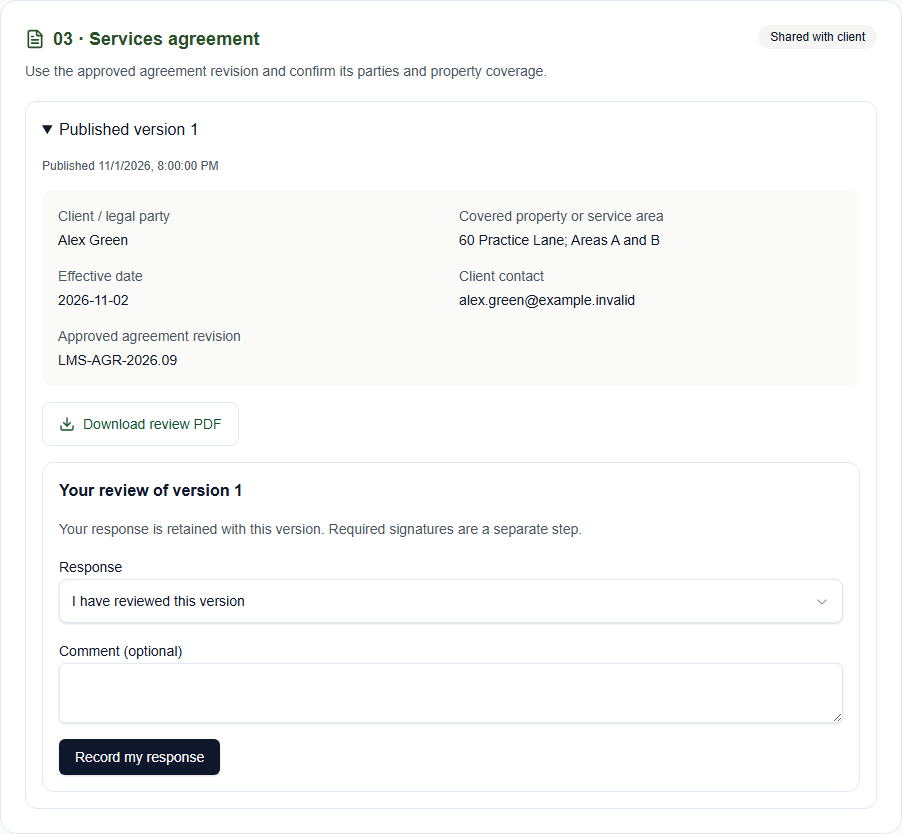
Review the property authorization, services agreement, agreed work order, and any applicable aerial addendum shared for your case.
Raise corrections before signing. When a signing package is available, read the exact documents and complete the requested signatures through the provided signing process.
For signing on a staff device, review only your package and return the device after your session. Check the case for the completed documents when available.
TASFRL staff
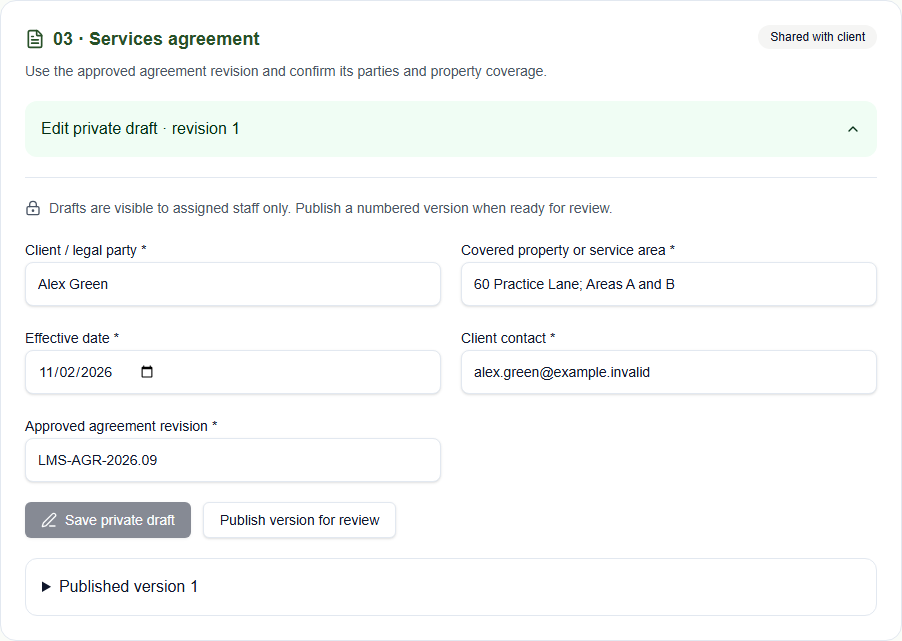
Prepare Forms 02 and 03 against the agreed scope, plus Form 07 when applicable. Resolve review comments before preparing the signing package.
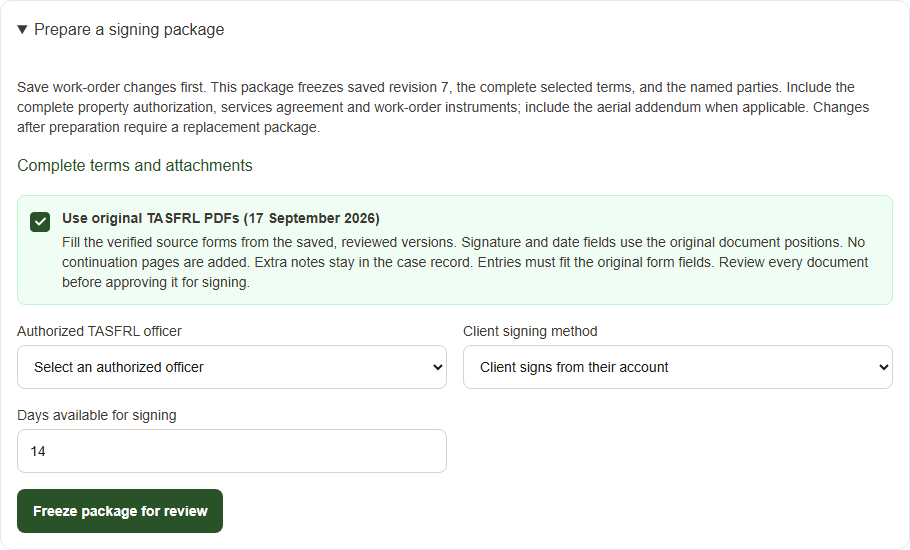
In Prepare a signing package, choose Use original TASFRL PDFs (17 September 2026) when available. The system fills the saved, reviewed forms and uses their original signature and date positions. Choose the authorized officer and review every frozen page before approving the package for sending.
Verify the required execution evidence. After a client signs on a shared device, sign in again before returning to staff controls.
Signing is available only when enabled and the package is eligible. If controls are unavailable, contact the case lead about the remaining requirements.
Current UI: client and staff
Captured 16 October 2026 from the current application with synthetic case data. These examples show the controls, not a live client case or a completed signing ceremony.
Client viewStaff viewPrepare signing with original TASFRL PDFs
Stage 4 of 6
Readiness and scheduling
Client
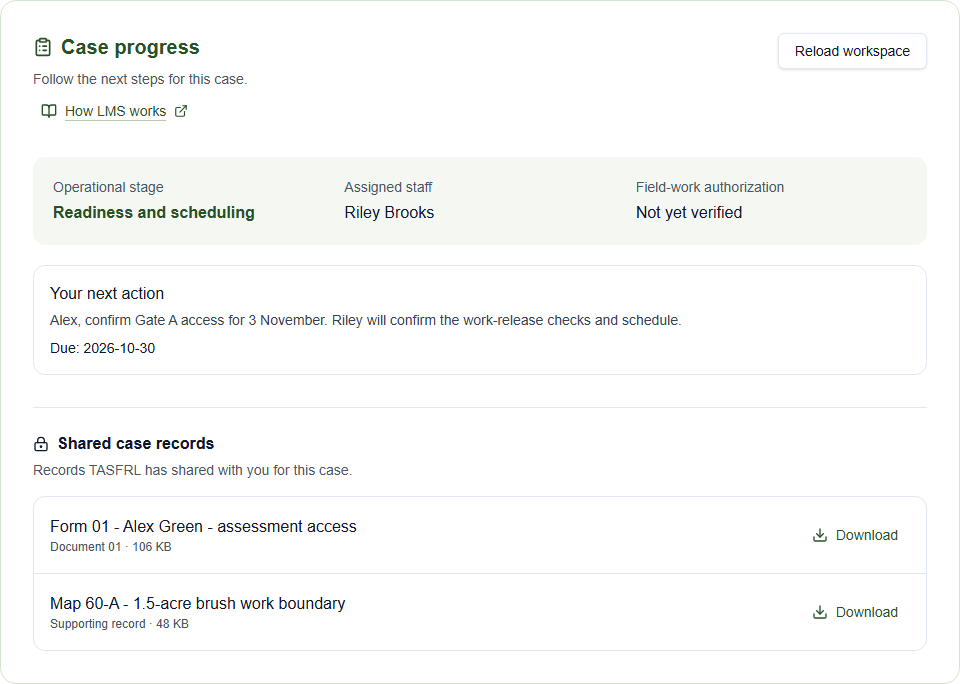
Check Your next action for access, scheduling, or other information the team needs.
Provide requested information and coordinate the proposed dates with the case lead.
Wait for the team to confirm the released work and schedule. Signed documents alone do not confirm that work can start.
TASFRL staff
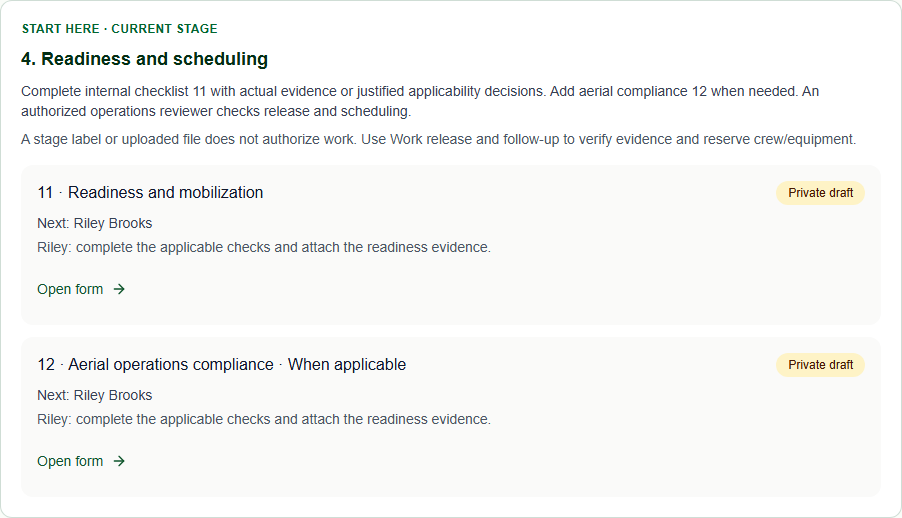
Complete internal readiness checklist 11 with current evidence or justified applicability decisions. Complete aerial compliance 12 when applicable.
Use Work release and follow-up for the required operations checks and authorized release. Address any missing evidence or required finance review.
Reserve crew and equipment through scheduling controls and communicate the confirmed arrangements to the client.
Who acts next
Client supplies remaining details → authorized reviewers release the work → staff confirms scheduling with the client.
Records: Internal 11 · Readiness checklist; conditional internal 12 · Aerial compliance; release and scheduling records.
The stage label and uploaded files do not authorize work. Field-work authorization in Case progress reflects the checked evidence and recorded release.
Current UI: client and staff
Captured 16 October 2026 from the current application with synthetic case data. These examples show the controls, not a live client case or a completed signing ceremony.
Client viewStaff view
Stage 5 of 6
Field work and changes
Client
Coordinate with the case lead while released, scheduled work is performed.
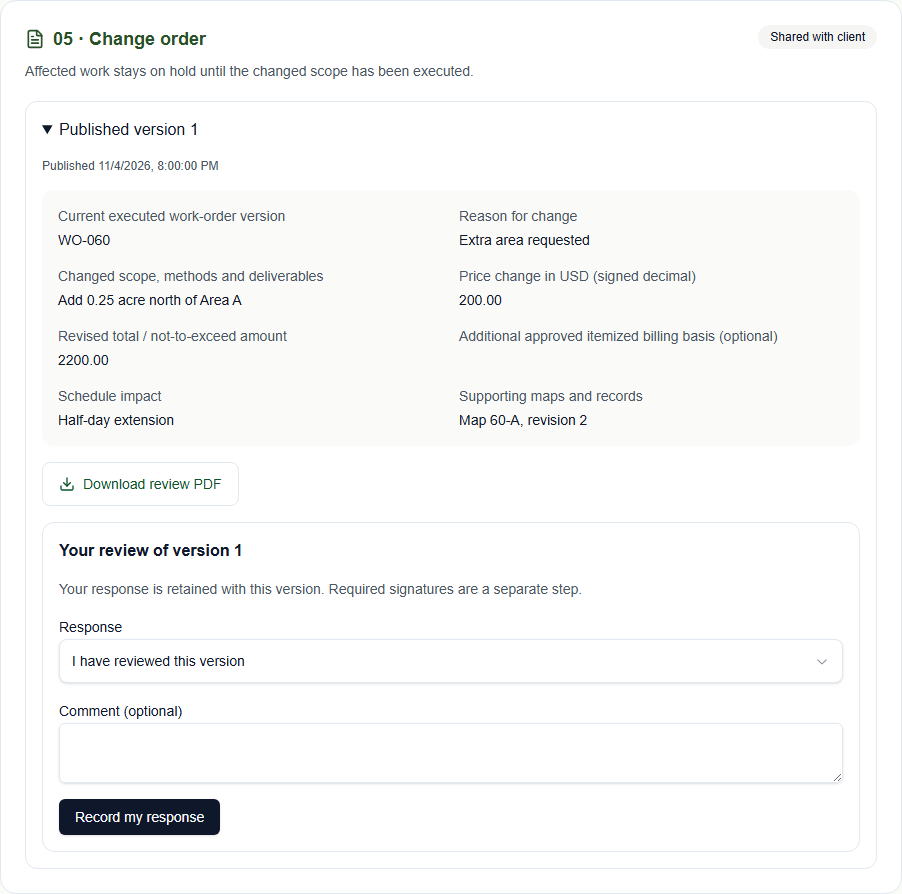
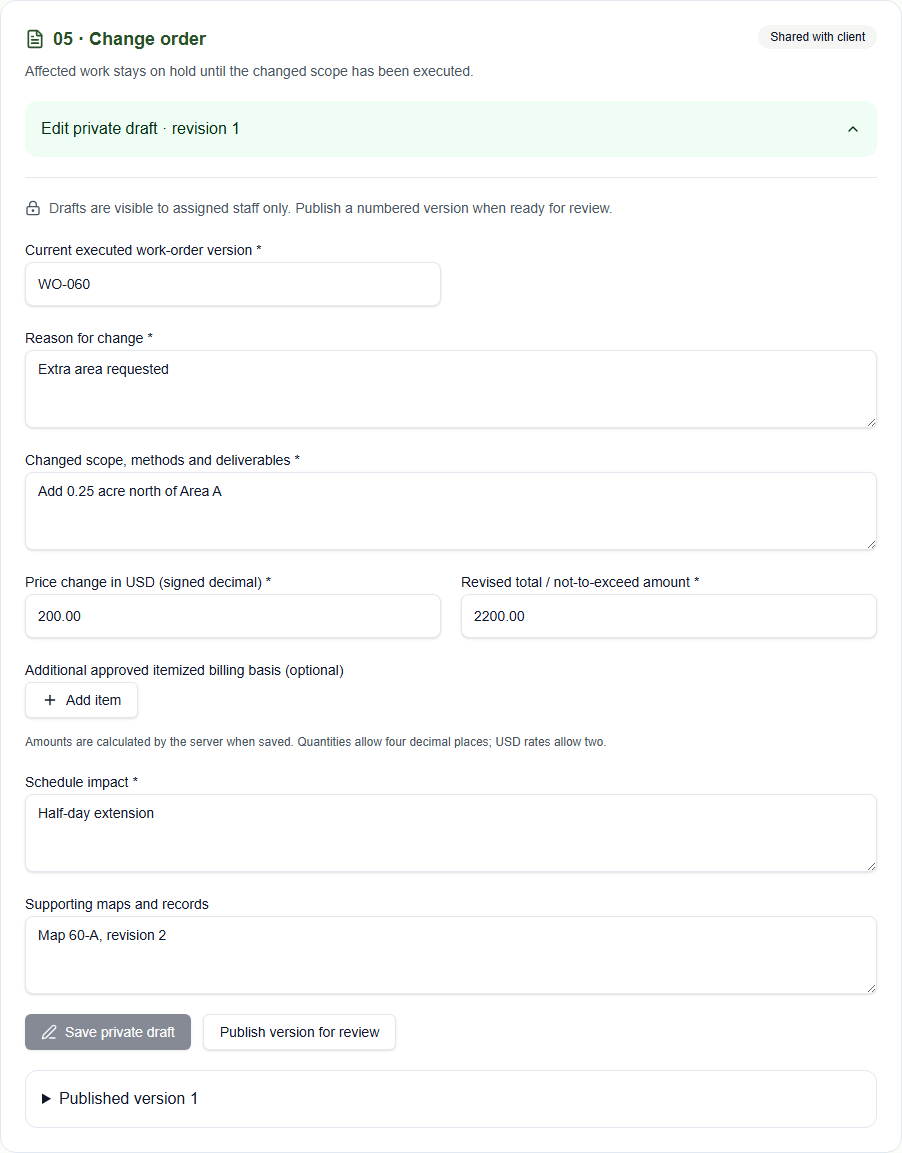
For a proposed scope, price, or schedule change, read the shared Form 05 and respond. Complete the required signing step for the change when available.
If work is held, follow the case lead's instructions while authorized operations reviewers resolve the hold.
TASFRL staff
Perform only released, scheduled work. Keep daily time, equipment, services, and supporting evidence in internal Form 13.
Prepare Form 05 for a proposed change, obtain the required client review and execution, and use the authorized change controls before applying it.
Record incidents in internal Form 14. Use operations controls for holds, corrective actions, and verified restart conditions.
Who acts next
Staff proposes a change → client reviews and signs as required → authorized staff applies the change and confirms the next work.
Records: Internal 13 · Daily field record; conditional 05 · Change order and internal 14 · Incident report.
A client review alone cannot apply a change or restart held work. Internal field and incident records stay with the authorized team.
Current UI: client and staff
Captured 16 October 2026 from the current application with synthetic case data. These examples show the controls, not a live client case or a completed signing ceremony.
Client viewStaff view
Stage 6 of 6
Completion and billing
Client
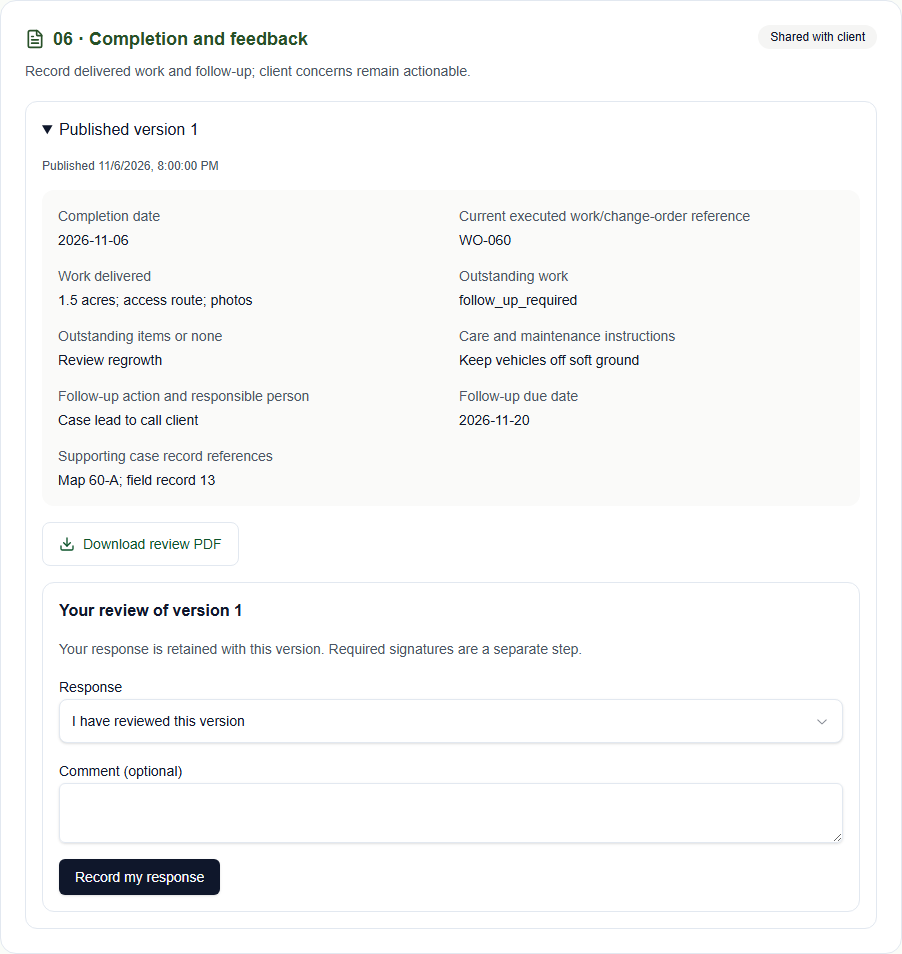
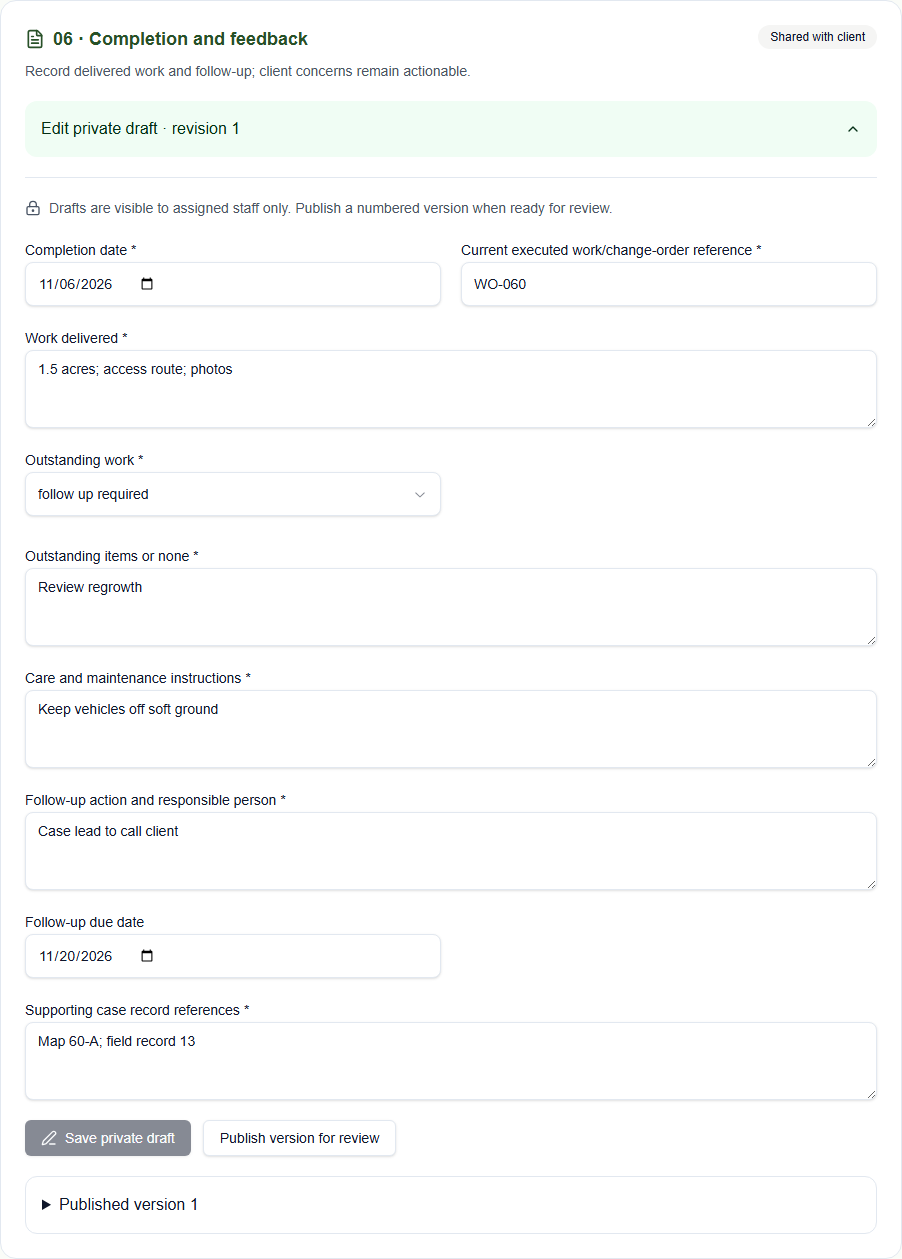
Read the shared completion record, delivered work, care instructions, and any open items in Form 06.
Record feedback or concerns and complete required execution when available. Contact the case lead if an item still needs follow-up.
Read released invoices and credits in Billing and follow the payment instructions provided by TASFRL.
TASFRL staff
Prepare Form 06 and obtain client feedback and required execution. Respond to concerns and assign a responsible person and follow-up date for unresolved items.
Use the authorized operations action to close completed work while retaining its evidence and follow-up records.
Authorized finance staff issues invoices or credits and records receipts and allocations. Reconcile billing separately from operational closure.
Work closure does not mean an invoice is paid. Billing can also occur earlier, such as a deposit before mobilization; the case UI does not process payments.
Current UI: client and staff
Captured 16 October 2026 from the current application with synthetic case data. These examples show the controls, not a live client case or a completed signing ceremony.
Client viewStaff view
Find your case
Sign in with your verified account. Clients open their linked requests; staff open assigned cases. The case page is where you save responses and check the next action.
For questions or a missing case, contact TASFRL and provide your case reference.
Common questions
Do I need a complete account profile before requesting LMS?
No. Complete the required contact, property, access and consent information in the LMS request. The account profile adds general land background, interests and goals for ongoing support. Saved name, email and phone can prefill About You with either an incomplete or complete profile; property and access information still belongs to the request. Profile completion does not verify ownership, confirm partnership benefits or approve services. Compare both fictional paths in the website tour.
Where do I find my case and the next action?
Clients use My Account → Land Stewardship; assigned staff use My Account → Assigned Cases; administrators use Admin → Cases. Open the case and read Case progress and Your next action. Staff sees the same client instruction as Next action shown to the client. The due date appears when one has been set.
How does the client–staff review loop work?
Staff saves a private draft and shares or publishes a numbered version. The client reads that version and records a response. For changes or a decline, the client must explain why. Staff addresses the response and shares a replacement version when appropriate, then the client reviews again. Each response stays with its own version; contact the case lead if an already recorded response needs correction.
Will every update arrive by email?
The system queues case-update notices for eligible verified, linked clients when staff changes the client next action, due date, or client-visible stage. Sharing records and signing have their own notification rules. Delivery can be delayed or fail, so use the saved case page to check progress. Replying to an email does not record a review response in the case.
What can the client see?
Clients see their linked case, client follow-up, shared assessment findings, released client-facing form versions, and files shared with them. Staff drafts, private planning, rate approvals, readiness checklists, daily field records, and incident reports are internal. Staff access also depends on assignment and permissions; sending someone a case link does not grant access.
What if a form or button is missing?
Available controls depend on your role, case state, and enabled features. Clients see only their shared tasks. Staff can inspect another stage without changing the saved operational stage. Look for Prepare Form or Open form in that stage's tasks and the expandable work controls or Billing section. Contact the case lead or administrator for missing access, unavailable signing, or unmet requirements.
Does uploading a PDF complete or sign a form?
No. Supporting files and uploads store evidence with selected access permissions. Client form downloads use the original TASFRL PDFs from 17 September 2026, filled from the saved version. Original pages are retained; labelled detail pages preserve assessment entries, work-order information or a recorded officer title that exceeds its box. Other entries must fit the original form fields. Signature fields stay blank until the signing ceremony. Prepare structured forms in Case journey and forms; publish, review, approve, and sign through the relevant controls. An uploaded scan is not automatically verified execution evidence or a work release.
Where do the optional documents fit?
Community pricing uses internal 08 and 09 during pricing. Aerial work may require 07 and internal 12. Changes use 05; incidents use internal 14. Optional Form 15 records separate media permission; it is not required for the main six stages. Internal 00 is the administration guide. Use only the documents applicable to the case.